
Using NAI SSK 2.x Sample Applications
Edit this on GitLab
Overview
The NAI Software Support Kit (SSK 2.x) ships with sample applications that demonstrate how to configure and operate every supported function module type. Each sample is a standalone C program that connects to an NAI board, selects a module, and exercises one or more naibrd_*() API functions — you can run them as-is for hardware verification or use them as a starting point for your own application.
Before running any sample application, you must download and build the SSK for your target platform. Build instructions for all supported environments (Petalinux, VxWorks, and DEOS) are provided in the SSK 2.x Software Development Guide. That guide covers environment setup, cross-compilation, and deploying executables to the target — this guide focuses on what happens after the application is running.
For the SSK 1.x version, see Using NAI SSK 1.x Sample Applications.
What the Sample Application Guides Cover
Every sample application guide on this site follows a consistent structure:
-
Overview — what the sample demonstrates, which module types it supports, and prerequisites.
-
Board Connection and Module Selection — the shared startup sequence (described below) that all samples use to connect to hardware.
-
Program Structure — entry point, application parameters, and the command loop or operational flow.
-
Functional Sections — detailed walkthrough of each API operation with code snippets extracted from the source, parameter explanations, and module-specific behavior notes.
-
Troubleshooting Reference — common errors, their causes, and suggested resolutions.
-
Full Source — the complete source file in a collapsible block for reference.
The guides are written as practical references for engineers building their own applications. Code snippets focus on the naibrd_*() API calls you need — menu handling and input boilerplate are stripped so you can see exactly what to call and in what order. For hardware-specific specifications (ranges, timing, FPGA revision requirements), each guide directs you to the relevant module manual rather than hardcoding values.
Key Differences from SSK 1.x
If you are familiar with the SSK 1.x sample applications, the following changes apply to SSK 2.x:
| Area | SSK 1.x | SSK 2.x |
|---|---|---|
Include paths |
Flat includes: |
Hierarchical: |
Console output |
|
|
VxWorks entry point guard |
|
|
Module identification |
|
|
Boolean constants |
|
|
Supported platforms |
Windows, Linux, VxWorks, ARM Linux |
Petalinux, VxWorks, DEOS |
Build system |
Platform-specific Makefiles |
Unified CMake-based build. See the SSK 2.x Software Development Guide. |
|
Note
|
Some SSK 2.x source files still use the legacy __VXWORKS__ guard. Each individual guide notes which guard its source file uses.
|
Sample Application Categories
The SSK 2.x sample applications are organized into six categories based on their operational pattern:
| Category | Description | Example |
|---|---|---|
BasicOps |
Interactive command-menu applications for channel configuration, reading, and status management. Cover the core API for each module type. |
|
Interrupt |
Demonstrate interrupt-driven I/O: ISR registration, steering, status latching, and platform-specific callback patterns. |
|
Loopback / Transfer |
Serial, ARINC, and CAN communication samples covering transmit, receive, and loopback verification. |
|
1553 |
MIL-STD-1553 Bus Controller, Remote Terminal, and Bus Monitor samples with standard and FIFO modes. |
|
Summary |
Multi-channel status display with optional interrupt-driven updates. New to SSK 2.x — no 1.x counterparts exist. |
|
Specialized |
FIFO-based measurement, pattern generation, and PWM output for DIF, DT, and TTL modules. |
Board Connection Menu
When you launch any SSK 2.x sample application, it follows a standard startup flow. The application first looks for a saved configuration file (for example, default_AD_BasicOps.txt). If the file exists, the application loads the saved connection settings and connects automatically. If the file does not exist — which is always the case on the first run — the application presents an interactive board connection menu.
Selecting a System Type
The first question asks what type of system you are connecting to.
-
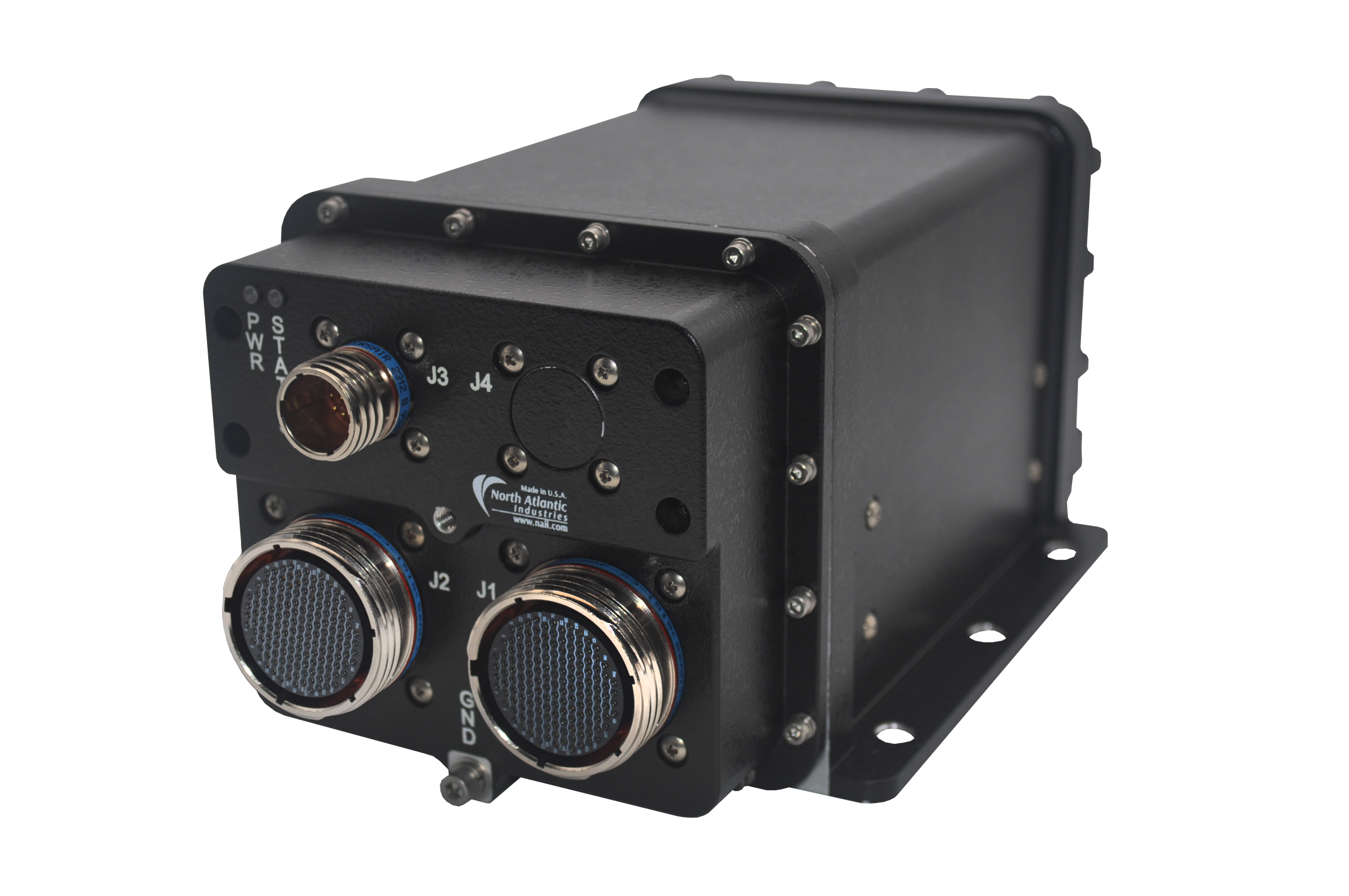
Nano — a small, rugged multifunction I/O system.
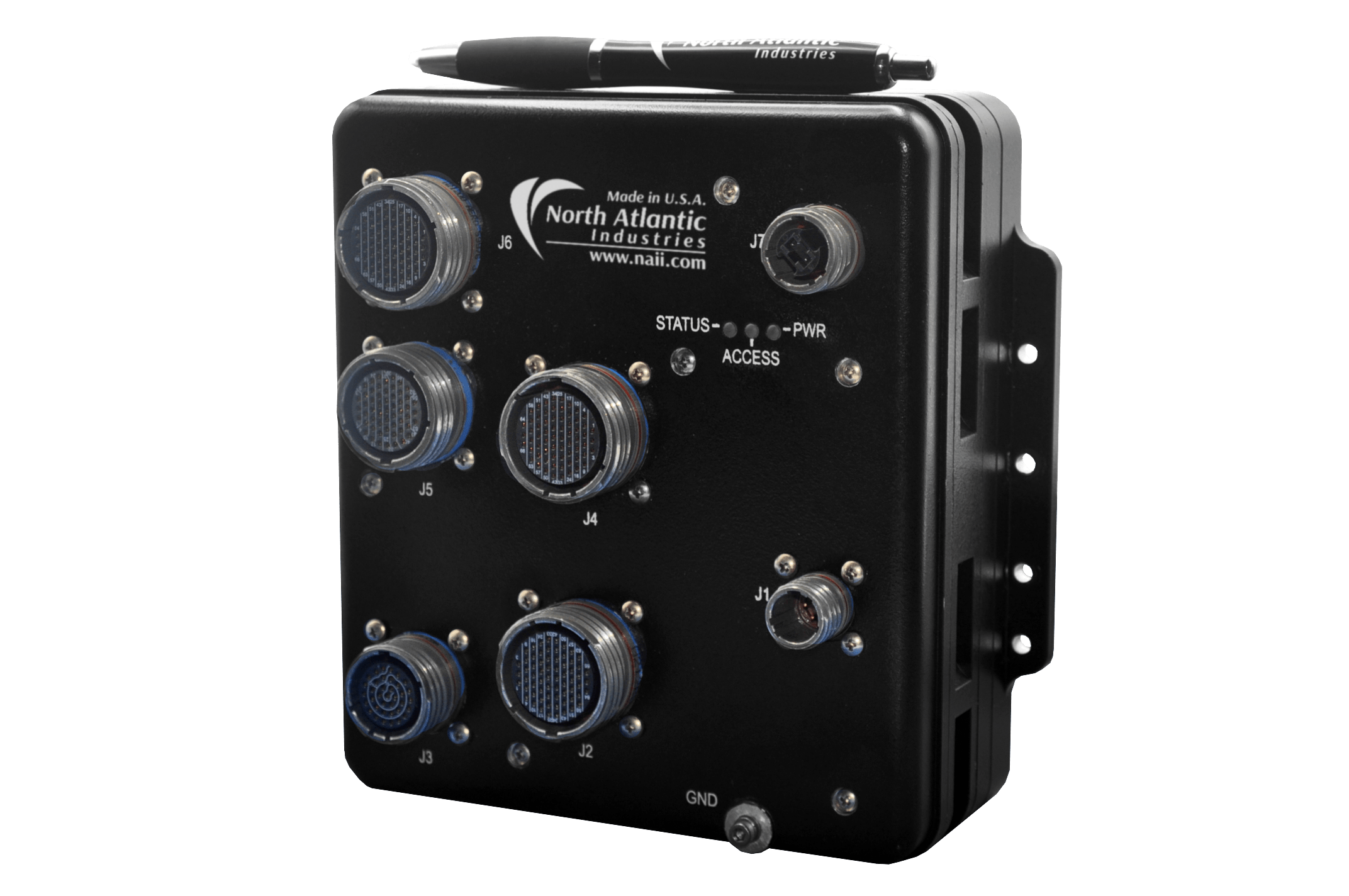
-
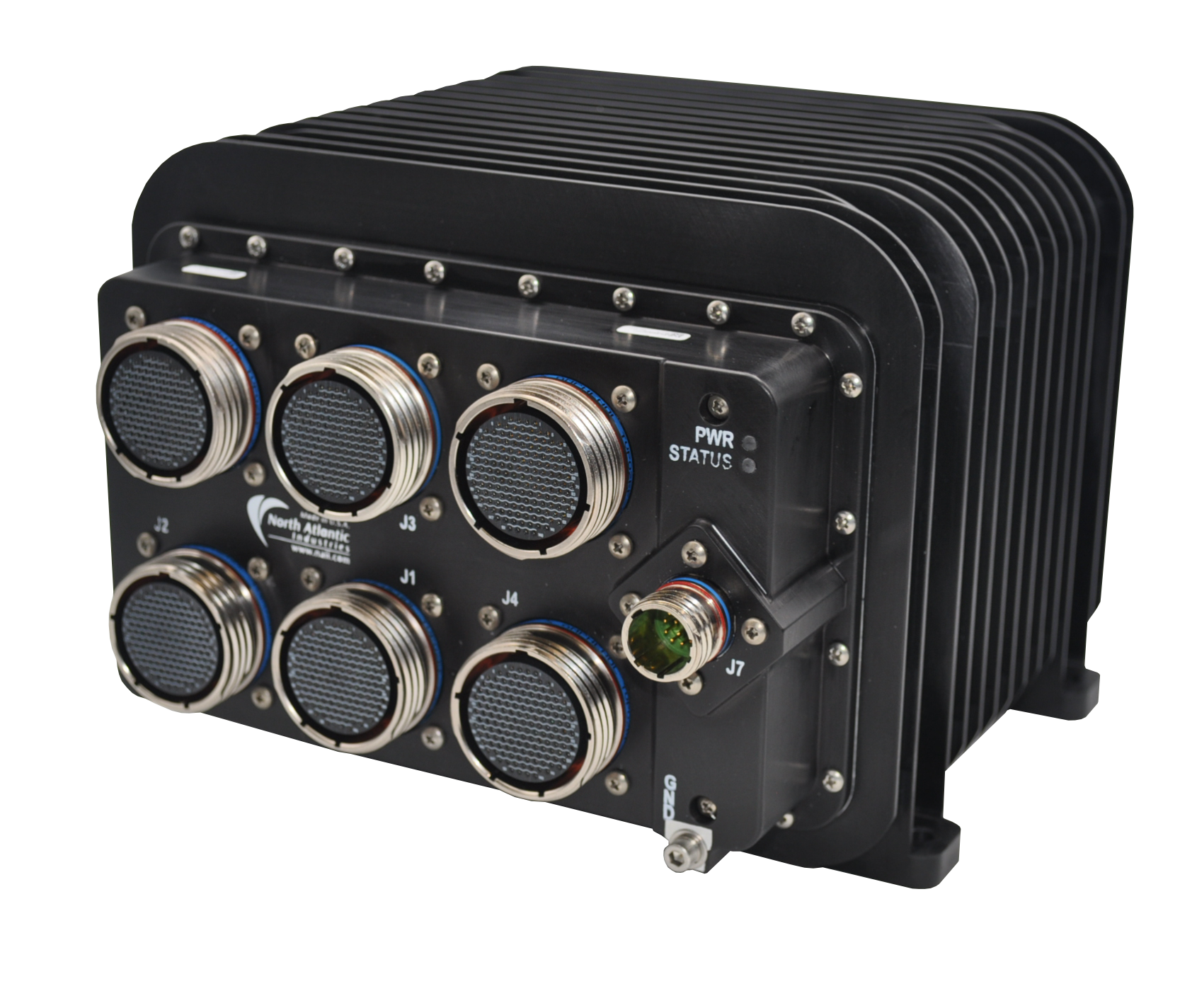
SIU — a large rugged system containing multiple open backplane boards.

-
Board — a single board computer.
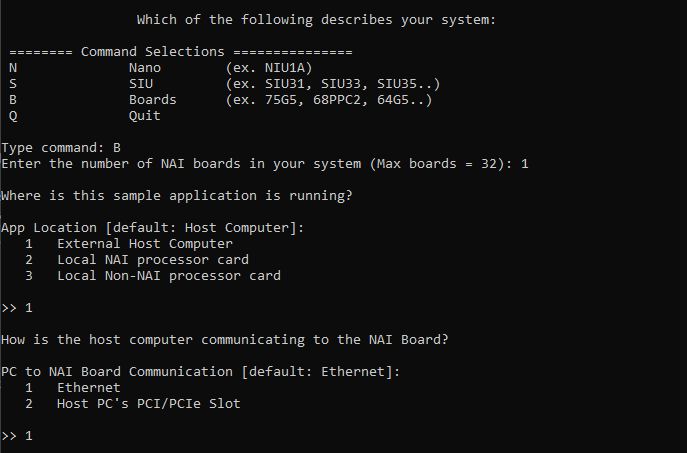
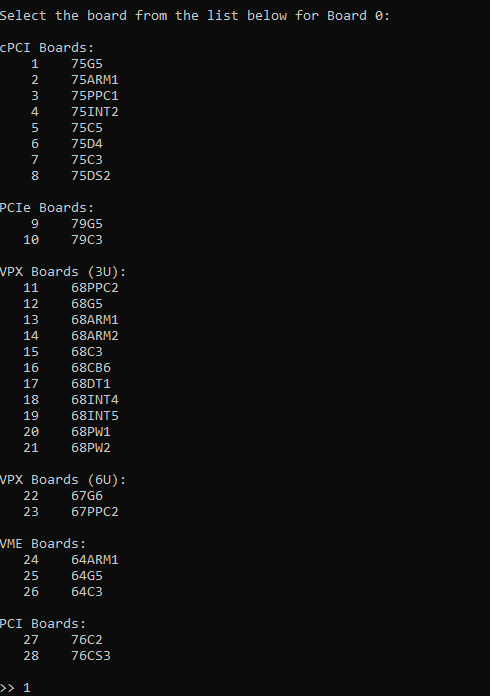
In this example we select Board (B), then choose the specific board type (for example, a 75G5):
Configuring the Connection
Enter the Ethernet protocol, port type, and IP address of the board:

If the connection parameters are correct, the application connects to the board and presents the module selection menu.
Selecting a Module
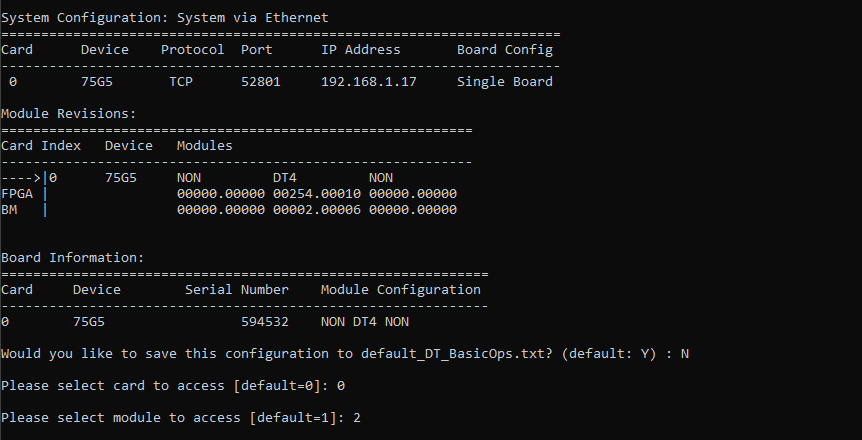
Select which module slot you want to work with. The menu shows which module types are installed at each slot:
Saving Your Configuration
After connecting successfully, you can save your settings. The application writes a configuration file (for example, default_AD_BasicOps.txt) so that the next time you run the same sample, it skips the board menu and connects automatically. You can always delete the configuration file to force the menu to appear again.
|
Note
|
The configuration file is not included with the SSK — it is created when you save your connection settings from the board menu. |
Working with the Application
Once connected and a module is selected, the application enters its operational mode. For BasicOps samples, this is an interactive command menu:
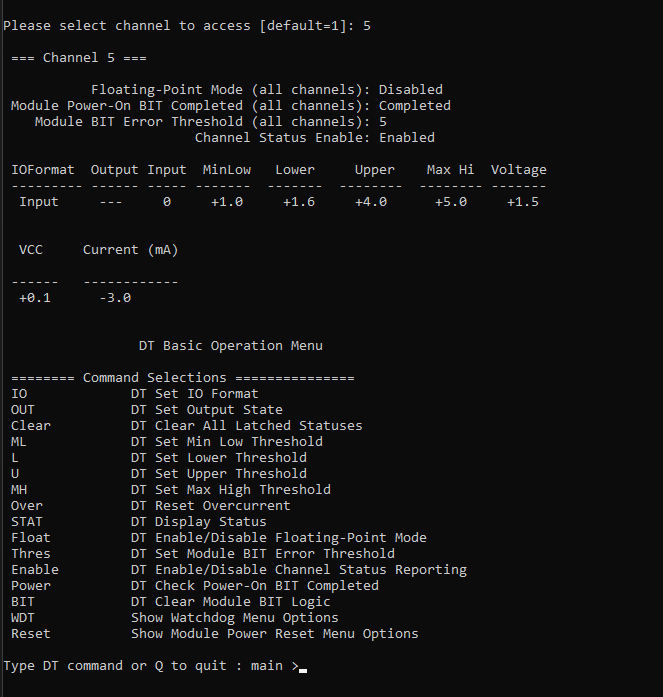
Select a command to configure a channel or read data:
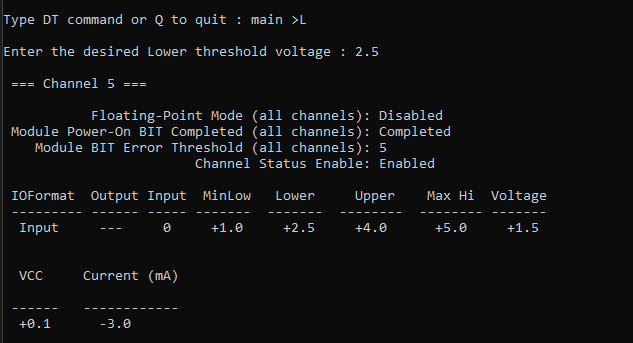
This walkthrough used the DT BasicOps sample as an example, but all SSK 2.x sample applications follow the same board connection flow. From here, explore the individual sample application guides for detailed API usage — each guide covers the specific naibrd_*() calls for its module type, including configuration, data transfer, interrupt handling, and diagnostics.
Common Startup Code
Every SSK 2.x sample application uses the same startup pattern. The main() function (or the VxWorks entry point) calls shared utility functions to handle board connection and module selection:
#if defined (NAIBSP_CONFIG_SOFTWARE_OS_VXWORKS)
int32_t AD_BasicOps(void)
#else
int32_t main(void)
#endif
{
   bool_t bQuit = NAI_FALSE;
   int32_t cardIndex = -1;
   int32_t module = 0;
   int32_t moduleCount = 0;
   uint32_t modId = 0u;

   if (naiapp_RunBoardMenu(CONFIG_FILE) == NAI_TRUE)
   {
      while (!bQuit)
      {
         naiapp_query_CardIndex(naiapp_GetBoardCnt(), 0, &cardIndex);
         naibrd_GetModuleCount(cardIndex, &moduleCount);
         naiapp_query_ModuleNumber(moduleCount, 1, &module);
         naibrd_GetModuleName(cardIndex, module, &modId);

         /* Application-specific logic here */
      }
   }

   naiapp_access_CloseAllOpenCards();
   return 0;
}
The key calls in this sequence are:
-
naiapp_RunBoardMenu(CONFIG_FILE)— loads a saved configuration file or presents the interactive board menu. ReturnsNAI_TRUEif a board connection was established. -
naiapp_query_CardIndex()— prompts the user to select a card (board) index. In a multi-board system, each board has a unique index. -
naibrd_GetModuleCount()— retrieves the number of module slots on the selected board. -
naiapp_query_ModuleNumber()— prompts the user to select a module slot. -
naibrd_GetModuleName()— retrieves the module identifier at the selected slot. Downstream code uses this to adapt behavior to the specific module type. -
naiapp_access_CloseAllOpenCards()— closes all board connections on exit.
This startup code is identical across all sample applications. The individual guides document only the application-specific logic that follows.
Platform Considerations
SSK 2.x supports three target platforms. The sample applications are source-compatible across all three, with platform differences handled by the SSK abstraction layer.
Petalinux
The primary development platform. All sample applications are available on Petalinux. The entry point is main(). Console output uses naiif_printf(), which maps to standard printf() on this platform. Interrupt-driven samples use POSIX threads (pthread_create) for background ISR handling.
VxWorks
All sample applications are available on VxWorks. The entry point uses a named function (for example, AD_BasicOps()) selected by the NAIBSP_CONFIG_SOFTWARE_OS_VXWORKS preprocessor guard. Console output uses naiif_printf(), which maps to printf() on VxWorks. ISR callbacks use logMsg() instead of printf() for interrupt-safe output. Interrupt-driven samples use taskSpawn() for background threads.
DEOS
Most sample applications are available on DEOS. The entry point is main(). DEOS does not support POSIX threads, so samples that require background threads for interrupt handling may not be available on this platform. Each individual guide notes when a sample has DEOS limitations.
For platform-specific build instructions, environment setup, and deployment procedures, consult the SSK 2.x Software Development Guide.
From Samples to Your Own Application
The sample applications use an interactive board connection menu that prompts for system type, board, and module slot each time you run them. This is convenient for exploration and testing, but when you deploy your own application you will typically want to connect to a known hardware configuration automatically — without user interaction.
To make this transition, replace the naiapp_RunBoardMenu() call in the sample’s startup code with direct board access API calls that open a connection to your specific board and module. The Connecting to Boards guide documents the full set of board access functions and connection types available (Ethernet, PCI/PCIe, on-board), along with code examples for each. The module-specific API calls demonstrated in the sample application guides remain the same — only the connection setup changes.
If you want to run a deployed application directly on an NAI single board computer, SIU, or NIU without a host PC terminal, consult the Running Applications from the Target guide for instructions on loading and launching your executable on the target system.
Getting Help
If you encounter issues not covered in the individual sample application guides or this overview:
-
Check the SSK 2.x Software Development Guide for build and environment issues.
-
Consult the module manual for hardware-specific behavior — each guide links to the relevant manual.
-
Contact NAI support at NAI Support Portal.