
NAI Deos Quick-Start Guide
Overview
This document describes how to build NAI’s Software Support Kit (SSK) 2.x in DDC-I’s OpenArbor IDE and deploy a Deos image on an NAI board. The steps are the same for every board with a Deos workspace in the SSK; Find Your Board lists the names that change from board to board.
Environment Setup
Please contact DDC-I to obtain a copy of the DDS (DDC-I Developer Suite). Once installed, launch the OpenArbor IDE to start working with the NAI Software Support Kit.
Required Tools (Deos)
- DDC-I OpenArbor
- NAI Software Support Kit (SSK) Package
- Terminal Emulator (TeraTerm, PuTTY, etc.) set up for 115200 baud, 8 data bits, 1 stop bit, no parity
- Tftpd64.exe (boards that load Deos over the network)
- USB device (68INT6, to boot the Deos image from the BIOS)
Building and Running a Project
Find Your Board (Deos)
Wherever a step says your board’s workspace or your board’s platform project, use the values from your board’s row.
| Board | Workspace (under deos/) | Platform project | Select your board | Loading Deos |
|---|---|---|---|---|
| 68ARM2 | deos_kismet/nai-ultrascale | nai-ultrascale | Workspace default | U-Boot network boot, or from a SATA drive |
| NIU3A | deos_kismet/nai-ultrascale | nai-ultrascale | Run use-niu3a-deos-bsp.py | U-Boot network boot, or from a SATA drive |
| NIU3E | deos_kismet/nai-ultrascale | nai-ultrascale | Run use-niu3e-deos-bsp.py | U-Boot network boot, or from a SATA drive |
| 68INT6 | deos_kismet/nai68int6 | nai68int6-x86_64 | Nothing to do | Boot from a USB flash drive with GRUB configured (see DDC-I’s nai68int6_x86_64 BSP User’s Guide) |
| 67PPC2 | deos_jupiter/67ppc2 | nai67ppc2UBoot | Nothing to do | U-Boot network boot, or from NOR flash |
| 68PPC2 | deos_jupiter/68ppc2 | nai68ppc2 | Nothing to do | U-Boot network boot, or from NOR flash |
- Selecting your board: the UltraScale workspace is set up for the 68ARM2.
For a NIU3A or NIU3E, run your board’s script with Python from the
deos/deos_kismet/nai-ultrascalefolder before you build. It points every project at your board’s configuration (naibsp_config_<board>_deos). The folder also hasuse-niu3c-deos-bsp.pyfor the NIU3C motherboard that the NIU3A and NIU3E share, anduse-68arm2-deos-bsp.pyto switch back. - Other workspace versions:
deos_kismet/nai-ultrascale-aarch64is the AArch64 version of the UltraScale workspace (platform projectnai-ultrascale-aarch64, same board scripts). The Deos 653 versions aredeos_kismet/nai-ultrascale-653,deos_kismet/nai68int6-653, anddeos_jupiter_653/67ppc2. - Kernels: the
deos_kismetworkspaces use DDC-I’s Kismet kernel and thedeos_jupiterworkspaces use Jupiter. Where the two differ, this guide says so.
NAI Software Support Kit Description (Deos)
The NAI SSK contains NAI libraries and code to access all onboard and offboard
modules. The base folder contains the NAI libraries, and the deos folder
contains fully configured OpenArbor workspaces whose project files link to the
source code in base for Deos RMA. Below is an overview of the projects in a
workspace.
| Project Name | Description (Listed in recommended build order) |
|---|---|
| naibsp | Handles OS and processor-specific routines, implements interface driver code |
| nailib | Defines common utility routines used by other NAI libraries |
| naiether | Defines NAI ethernet protocol to handle NAI commands over ethernet |
| naiif | Defines higher level routines for handling read/write access, invokes naibsp calls |
| naibrd | Defines NAI routines used by NAI sample applications |
| naiapp_common | Defines utility routines used by NAI sample applications |
| naiapp_mod_* | NAI sample application programs for all available modules |
| Platform project | Deos platform project that builds the hyperstart/composite image for your board (see Find Your Board) |
Building Deos BSP Package in OpenArbor (Deos)
-
Launch OpenArbor.
-
For a NIU3A or NIU3E, first run your board’s selection script (see Find Your Board).
-
Select your board’s workspace directory in the location of the SSK, for example
deos/deos_kismet/nai-ultrascale.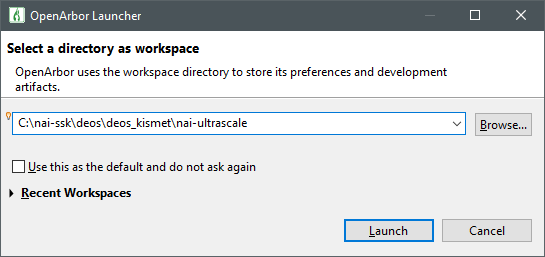
-
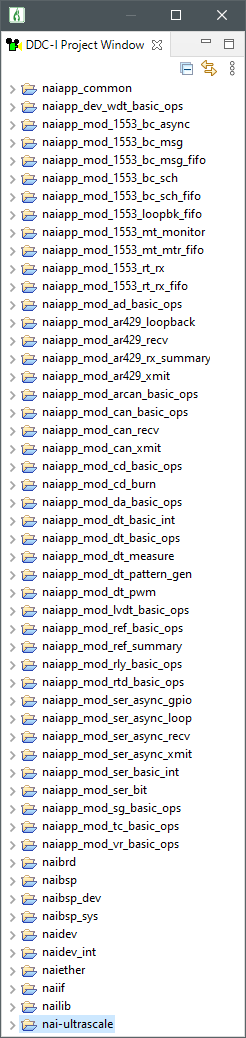
Once the workspace has been selected, the following projects should be made available to build in the DDC-I Project Window. (Projects may vary depending on system configuration.)
-
Building your board’s platform project will generate a composite.darc file which contains the kernel, configuration files and application code that will be loaded onto the target system. On the 68INT6, the build instead creates a
CopyToUSBDevicefolder containingload-composite.darc.gz. Booting it from a USB flash drive takes a few steps to configure GRUB on the drive; follow DDC-I’s nai68int6_x86_64 BSP User’s Guide.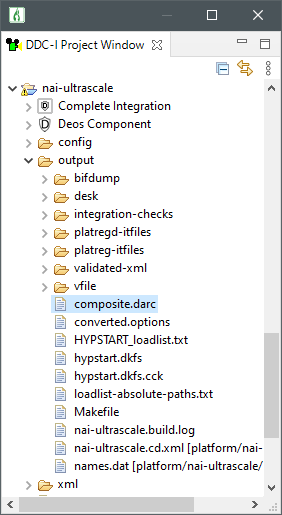
-
The U-Boot environment variables that need to be set to net-boot Deos are in the U-Boot Environment Variables section of the workspace README:
deos/deos_kismet/nai-ultrascale/nai-ultrascale/README.mdfor the 68ARM2, NIU3A and NIU3E, anddeos/deos_jupiter/68ppc2/README.mdfor the 68PPC2.
Running Other Sample Applications in OpenArbor (Deos)
By default, the only dependency that your board’s platform project has is the Deos standard-apps which enable network connection to run tools like the Video Stream and Status Monitor. To run any of the included NAI sample applications, you can add the application as a dependency on the platform project. The Deos image needs to be rebuilt and reloaded.
-
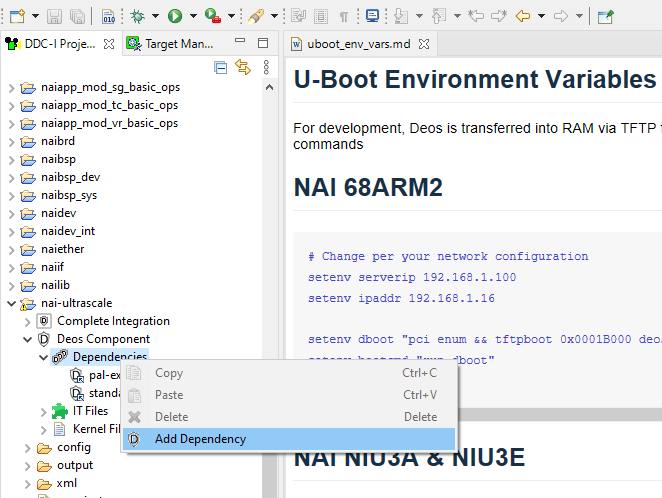
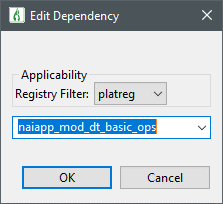
Go to your board’s platform project and navigate to Deos Component → Dependencies. Right-click and select Add Dependency.
-
Select the application you would like to integrate with your board’s BSP.
-
Build all projects.
-
In the Target Manager add a connection for your board’s platform project.
-
Launch the Status Monitor or the Video Stream.
-
Right-click the Status Monitor or Video Stream and click Update Target Load. Make sure End up in registry is set to platreg if that is where application dependency is. Make sure Force Cold Start is checked.
Deos should now cold start and the new application should be running.
Changing Board IP Address (Deos)
-
On boards that boot through U-Boot, change the IP address in U-Boot via the
ipaddrenvironment variable. Make sure to save the environment via thesaveenvcommand. (The 68INT6 boots from its BIOS, so skip this step.)setenv ipaddr 192.168.1.16 setenv serverip 192.168.1.100 saveenv -
OpenArbor stores information about the platform’s IP address in the lwip.config file. Navigate to your board’s platform project → config → lwip.config and change the IP address on the
interface=line for your board’s Ethernet port. The lines should read:Board interface=line68ARM2, NIU3A, NIU3E interface=xilinx-gem:0 192.168.1.16 255.255.255.068INT6 interface=igc:0,i225 192.168.1.16 255.255.255.067PPC2, 68PPC2 interface=dtsec:2,1,FMANV3 192.168.1.16 255.255.255.0NAI boards don’t support DHCP, so if your workspace’s line includes
DHCP, delete it. The UltraScale workspaces also define a second port,interface=xilinx-gem:1 192.168.2.16 255.255.255.0.
More information can be found in the Deos BSP User Guide for your board, included with OpenArbor.
Deos 653 (Deos)
By default, the naibsp library is configured to be used by a Deos RMA process. If the user would like to call the library from a Deos 653 process, the following changes must be made so that naibsp can use the correct Deos Semaphore implementation:
- In the naibsp project, navigate to Deos Component → Dependencies and add deos-653-p1 as a dependency.
- In the naibsp project properties, navigate to DDC-I Options → C Compile → Preprocessor and add a Defined Macro named DEOS653P1. If the application is a C++ application, the same change will need to be made in the C++ Compile tab.
Creating Projects from Scratch (Deos)
These steps also demonstrate the process for how to link NAI libraries to your own application the same way that they are referenced in the sample applications. Several of these libraries are required for communication with NAI hardware.
-
Navigate to File → New → DDC-I Executable Project.
-
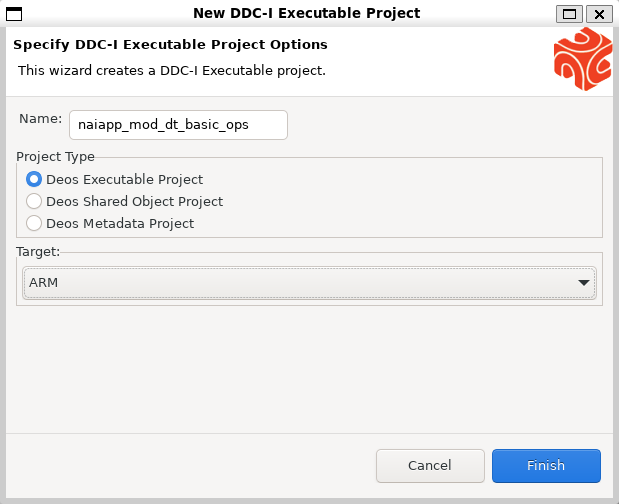
In the New DDC-I Executable Project window, enter a project name. Select Deos Executable Project as the Project Type and the architecture of your board in the Target dropdown.
Note
This guide is targeting the nai-ultrascale platform, so ARM Target is selected. Your board may require you to select Power PC or x86_64.
-
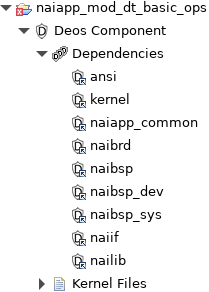
Expand the new project in the DDC-I Project Window, and open the Deos Component → Dependencies tabs.
-
Modify your project’s .options file to add the following dependencies:
<depend>ansi</depend>
<depend>kernel</depend>
<depend>naiapp_common</depend>
<depend>naibrd</depend>
<depend>naibsp</depend>
<depend>naibsp_dev</depend>
<depend>naibsp_sys</depend>
<depend>naiif</depend>
<depend>nailib</depend>
The Dependencies tab of your project should now look like the following:
-
Right-click on your project and select Properties → DDC-I Options → C Compile → Directories. Add the following directories to the project:
$(PROJECT_DIR)/../../../../base
$(PROJECT_DIR)/../../../../base/nai_bsp
$(PROJECT_DIR)/../../../../base/nai_bsp/naibsp_config_{BOARD_NAME}_deos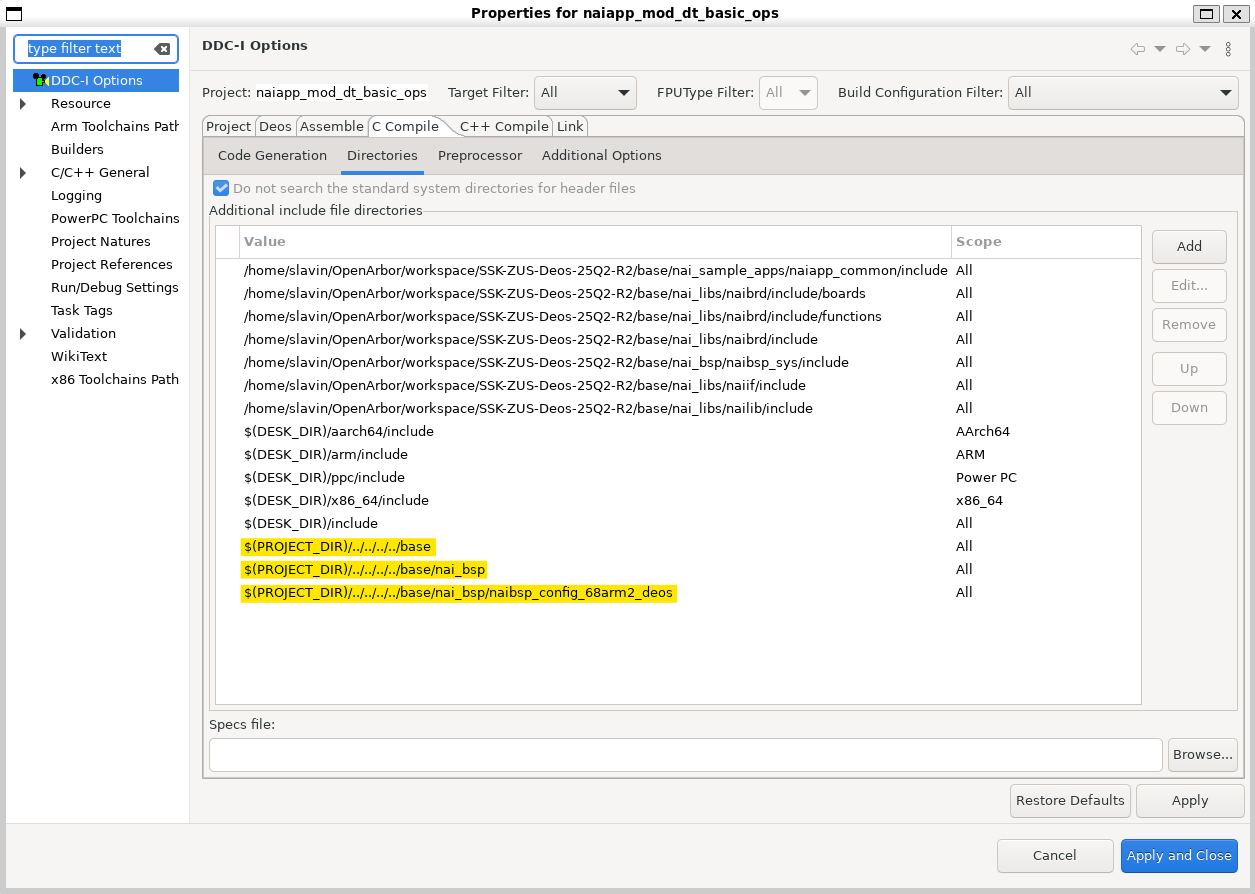
-
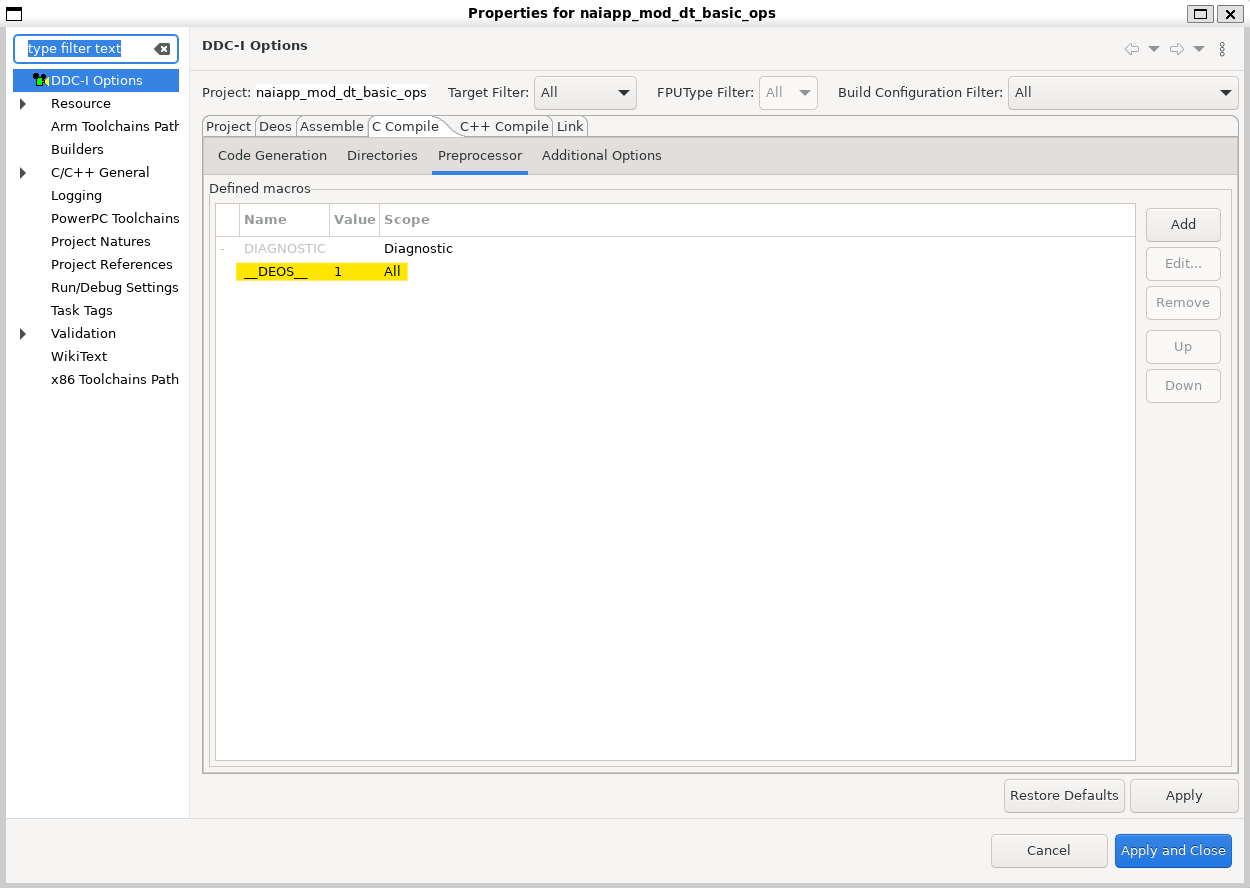
Switch over to the Preprocessor tab under C Compile. Add a new Defined Macro named
__DEOS__with a value of 1.Note
If the application is a C++ application, the same change will need to be made in the C++ Compile tab.
-
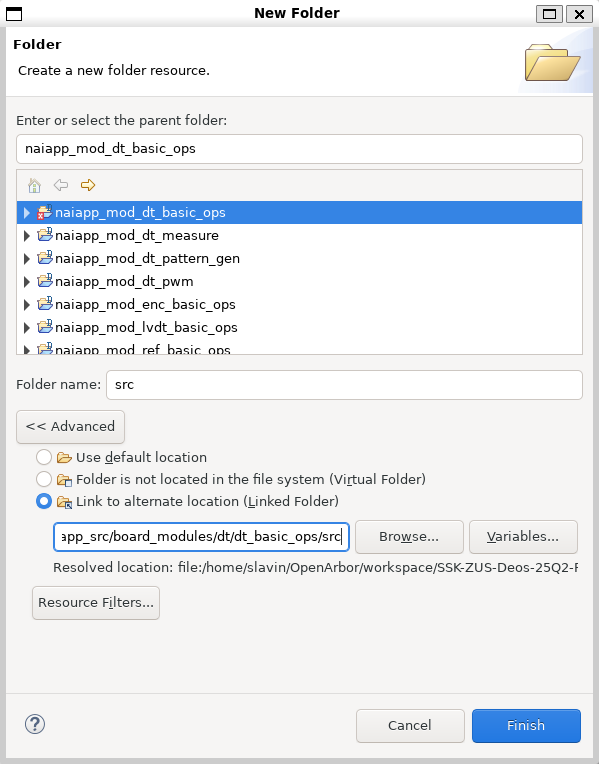
To add a source folder to the project, right-click the project and select New → Folder → Advanced.
-
Select Link to alternate location (Linked Folder) and Browse to the directory of your src folder. Source files for sample applications are located at base/nai_sample_apps/naiapp_src/board_modules/{MOD_NAME}/{PROJECT_NAME}.
-
Deos Executable Projects use a process developer XML file to define which process, threads, mutexes, and other resources are allocated to them. You have two options for how to create one for your project:
- Option A - If you are already familiar with process developer XML files and/or aware of which resources you are going to allocate, navigate to File → New → Other → DDC-I → DDC-I Deos Process Developer XML File and use the XML wizard to define your resources.
- Option B - If you are not familiar with process developer XML files, or are not sure which resources are required by naibsp, copy the “xml” folder and included pd.xml file from a project in the same module family and paste it in your project directory. Change the names in the XML file referencing the other project to the name of your project.
The naibsp project contains a naibsp-resources.pia.xml file which adds memory mapped resources to the integration. Below is a description of what these resources are:
| Resource | Description |
|---|---|
| DMABuffer1 | Used by NAI’s DMA engine, write data to DMA here, or read DMA data from here |
| ModuleInfo | NAI internal use. Needed by naibsp |
| ModuleConfigStatus | NAI internal use. Needed by naibsp |
| MotherboardCommon | NAI internal use. Needed by naibsp |
| ModuleControl | NAI internal use. Needed by naibsp |
| TTLSync | Provides access to 68ARM2 TTL Sync Engine |
| ModuleSpace | NAI internal use. Needed by naibsp |
| PCI[1-5]Mem | PCIe BAR for endpoint cards and their modules |
| ZynqMPCore | UltraScale+ memory regions. Refer to Xilinx UG1087 |
| uart_zus[0,1] | UART UltraScale+ memory regions. Refer to Xilinx UG1087 |
| i2c_zus[0,1] | I2C UltraScale+ memory regions. Refer to Xilinx UG1087 |
| rtc | Real-time-clock UltraScale+ memory regions. Refer to Xilinx UG1087 |
| SWDT_LPD | System Watchdog Timer UltraScale+ memory region. Refer to Xilinx UG1087 |
| SystemTimestampGeneratorSecure | System Timestamp Generator UltraScale+ memory regions. Refer to Xilinx UG1087 |
| SysMon | PL System Monitor UltraScale+ memory regions. Refer to Xilinx UG1087 |
| PSUCSU | PMU Configuration Security Unit UltraScale+ memory regions. Refer to Xilinx UG1087 |
Some of these memory mapped resources are required for a project to communicate with NAI hardware, while others are only necessary for utilizing certain functionality (e.g. DMABuffer1). These are included in the process developer xml files for the sample applications. If you are creating your own pd.xml file, be sure to add these resources by using the sample applications as a template.
Configuring Interrupts (Deos)
Kismet Deos SSK only
The interrupt configuration step below applies only to the Kismet Deos SSK (the
deos_kismetworkspace this guide covers). On the Jupiter Deos SSK (thedeos_jupiterworkspace), the included interrupt samples build and run as-is — do not add thenaibsp_sys-attach-interruptfeature, as it will cause build errors.
For systems using NAI interrupts, the naibsp_sys-attach-interrupt feature must
be enabled. This creates an ISR thread when naibrd_ConnectISR() is called. It
increases the thread quota, creates a thread template, and assigns ownership to
the responsible interrupt.
-
To enable it, add the following to your process developer XML file:
<usedFeatureSet
     name = "naibsp_sys"
     versionRequirement = "none"
     versionNumber = "none"
     featureSetUndefinedAction = "error"
   >
   <usedFeature
        name = "naibsp_sys-attach-interrupt"
      >
      <usedFeatureParameter
           name = "nameOfScheduler"
           value = "default-core-0"
      ></usedFeatureParameter>
      <usedFeatureParameter
           name = "nameOfUsingProcessInstance"
           value = "dt_basic_interrupt_process"
      ></usedFeatureParameter>
   </usedFeature>
</usedFeatureSet>
Replace
dt_basic_interrupt_processwith the name of your own process instance. -
Add your project as a dependency in your board’s platform project as outlined in Running Other Sample Applications. Right-click the project and select Rebuild Project.
Known Issues (Deos)
- Issue: DDC-I’s OpenArbor IDE sometimes will delete NAI’s source folders in a
given project, because they are “linked resource” folders. This change can be
seen in the .project file with the removal of the
<linkedResources>element.- Solution: Revert the .project file for the affected project.
- Issue: The OpenArbor Parallelized Builds feature can often cause workspaces
not to build.
- Solution: Fixed in OpenArbor version 8.6.7.