
Required Tools
- NAI Board with SATA drive and the ability to boot both Deos and Linux
- Already built Deos images: deosBoot.bin and composite.darc
- Terminal Emulator (TeraTerm, Putty, etc.) setup for 115,200 Baud Rate, 8 Data Bits, 1 Stop Bits, no parity
- File transfer tool (WinSCP, CLI SCP, etc.)
Prepare SATA Drive on ARM Boards
-
Boot the board and escape to the U-Boot prompt:
Hit any key to stop autoboot: 0 ZynqMP> -
Remove the SATA SSD write protect:
setenv sataenbl mw.l 0x83C10094 0 saveenv run sataenbl -
Boot PetaLinux image stored in QSPI:
run qspiboot -
After PetaLinux is finished booting, log in with the default username and password of “root” and “root”, respectively, and verify SATA drive is present. Note the drive name returned from this command, in this case “sda”:
$ ls -lF /dev/disk/by-id/ total 0 lrwxrwxrwx 1 root root 9 Feb 14 14:43 ata-SM659GEB_CDZ_A0620061901390000016 -> ../../sda lrwxrwxrwx 1 root root 10 Feb 14 14:43 ata-SM659GEB_CDZ_A0620061901390000016-part1 -> ../../sda1 -
The SATA drive comes with a PetaLinux image pre-installed on it. These instructions will allow for the Deos image to be saved on the PetaLinux filesystem. First check to see if the SATA is mounted in the QSPI PetaLinux image.
- Note: NAI 68GP2 PetaLinux only supports the VFAT
mkfscommand. For this board, use VFAT instead of ext4.
$ df -h Filesystem Size Used Available Use% Mounted on devtmpfs 3.8G 4.0K 3.8G 0% /dev tmpfs 3.9G 104.0K 3.9G 0% /run tmpfs 3.9G 92.0K 3.9G 0% /var/volatile /dev/sda1 28.6G 45.7M 27.0G 0% /run/media/sda1 - Note: NAI 68GP2 PetaLinux only supports the VFAT
-
If the SATA drive was not mounted run the following to mount it:
mkdir -p /run/media/sda1 mount /dev/sda1 /run/media/sda1 -
Create a directory on the SATA to store Deos files:
cd /run/media/sda1 mkdir DEOS -
The SATA drive is now ready for us to copy over our Deos images.
Copy Deos Boot Files to Drive
-
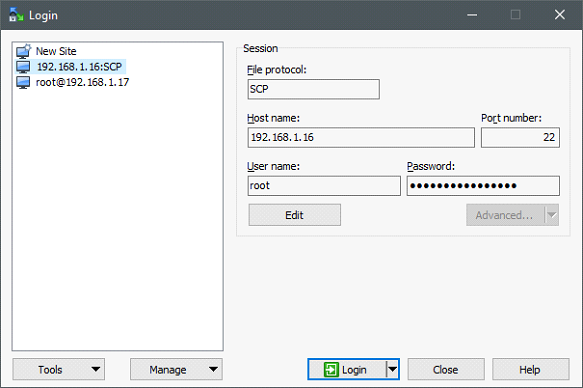
Locate Deos boot image and composite archive that you want to store on the SATA drive. With Linux still running on the target, open WinSCP on the host machine and login to a SCP or FTP session. Host name is the IP address of the target, use the same username and password used to login to Linux.
-
Login and ‘Update’ host key cache.
-
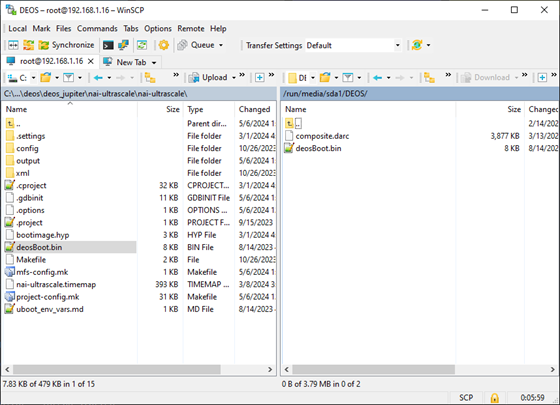
On host side, navigate to where your Deos images are. On the target side, navigate to where the SATA drive has been mounted to (ex.
/run/media/sda1/DEOS). -
Select files: deosBoot.bin and composite.darc, then select ‘Upload’ to transfer them to the target:
-
Close WinSCP
-
Un-mount drive in Linux:
cd ~/ umount /run/media/sda1 -
Power cycle the board, then break into U-Boot. Verify the files were persistent using the
lscommand.ZynqMP> scsi reset Reset SCSI scanning bus for devices... Target spinup took 0 ms. SATA link 1 timeout. AHCI 0001.0301 32 slots 2 ports 6 Gbps 0x3 impl SATA mode flags: 64bit ncq pm clo only pmp fbss pio slum part ccc apst Device 0: (0:0) Vendor: ATA Prod.: SM659GEB CDZ Rev: SP60 Type: Hard Disk Capacity: 30208.0 MB = 29.5 GB (61865984 x 512) ZynqMP> ls scsi 0 /DEOS <DIR> 1024 . <DIR> 1024 .. 3969244 composite.darc 8028 deosBoot.bin
Add U-Boot Environment Variables to Boot From SATA Drive
Follow the instructions below to add the following environment variables in U-Boot. The ping command is needed in order to initialize the network hardware before we jump to Deos.
-
Copy the following environment variables into the U-Boot console to setup SATA boot.
setenv dbootaddr 1b000 setenv hypaddr 20000000 setenv dbootSata ping \${serverip} \&\& scsi scan \&\& load scsi 0 \${dbootaddr} /DEOS/deosBoot.bin \&\& load scsi 0 \${hypaddr} /DEOS/composite.darc \&\& dcache flush \&\& dcache off \&\& go \${dbootaddr} \${hypaddr} saveenv -
If using a NIU3x add the following environment variables into the U-Boot console.
setenv load_fw_deos_sata "run cfg_satawp && run load_cal && run R5fw && run dbootSata" setenv bootcmd run load_fw_deos_sata saveenv -
If using a 68ARM2 add the following environment variables into the U-Boot console.
setenv load_fw_deos_sata "run cfg_satawp && pci enum && run dbootSata" editenv cfg_satawp edit: setexpr nvmro *0x83c10098 \& 0x4; if itest 4 -eq $nvmro; then mw.l 0x83c10094 1; else mw.l 0x83c10094 0; fi; mw.l 0x83c40160 1; setenv load_fw_linux_sata "echo Loading FW file from SATA... run cfg_satawp && run sataboot" setenv bootcmd run load_fw_deos_sata saveenv -
U-Boot is now configured to boot the Deos image stored on the SATA drive by default. To boot into Deos either power cycle the board or enter in the following to the U-Boot prompt.
boot -
To boot PetaLinux from SATA as the default break into U-Boot and modify the bootcmd variable:
setenv bootcmd "run load_fw_linux_sata"
saveenv
Optional: Fetch Checksum from Binary
After the images have been written to the SSD, you can use the built-in U-Boot checksum tool to fetch the CRC-32 of the binaries and compare it to what is calculated on your development machine.
-
Fetch CRC-32 from image on SSD:
# Power up board, reset scsi controller scsi reset # Load Deos image from SSD into ram at hypaddr load scsi 0 ${hypaddr} /DEOS/composite.darc # Get the size (in hex) of the Deos image. Command stores result in $filesize variable size scsi 0 /DEOS/composite.darc # crc the image. Result is displayed crc32 $hypaddr $filesize -
Example output. CRC noted as 0x2144DF1C:
ZynqMP> # Power up board, reset scsi controller ZynqMP> scsi reset Reset SCSI scanning bus for devices... Target spinup took 0 ms. SATA link 1 timeout. AHCI 0001.0301 32 slots 2 ports 6 Gbps 0x3 impl SATA mode flags: 64bit ncq pm clo only pmp fbss pio slum part ccc apst Device 0: (0:0) Vendor: ATA Prod.: SM659GEB CDZ Rev: SP60 Type: Hard Disk Capacity: 30208.0 MB = 29.5 GB (61865984 x 512) ZynqMP> # Load Deos image from SSD into ram at hypaddr ZynqMP> load scsi 0 ${hypaddr} /DEOS/composite.darc 3989724 bytes read in 129 ms (29.5 MiB/s) ZynqMP> # Get the size (in hex) of the Deos image. Command stores result in $filesize variable ZynqMP> size scsi 0 /DEOS/composite.darc ZynqMP> # crc the image. Results is displayed ZynqMP> crc32 $hypaddr $filesize crc32 for 20000000 ... 203ce0db ==> 2144df1c -
Fetch CRC-32 from the development machine using the 7-Zip CRC utility. The CRC-32 reported by U-Boot and the one reported by 7-Zip should match.